
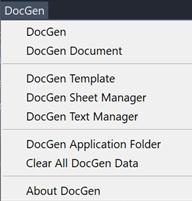
DocGen v3 is an AutoCAD based application for automatically generating documentation of EDA packages. All the intelligence needed to create documentation is contained within AutoCAD drawing template files generated by DocGen. The template file is combined with a design drawing by DocGen, which then assists the user to quickly and accurately complete the documentation values and embedded images and reports. DocGen is launched from an AutoCAD custom menu:
The DocGen Template module is the starting point for making an AutoCAD drawing available as a template for documentation. It consists of four key ideas:
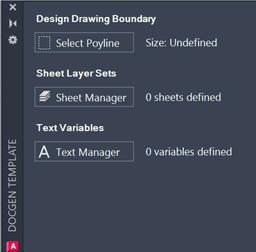
The design boundary indicates the location of the AutoCAD drawing representing the finished EDA design. The design drawing is always positioned with its scale preserved, and the template drawing is scaled around it. This boundary defines how this transformation takes place and ensures that the design is placed optimally within the documentation.
The DocGen Template function prompts the user to select a single zero with close polyline representing the design boundary. This information is then stored within the drawing, as with all other template defined data.
Documentation is broken down into sheet layer sets, or simply sheets. These sheets are named groups of layers which logically combine together to represent a view of the documentation.
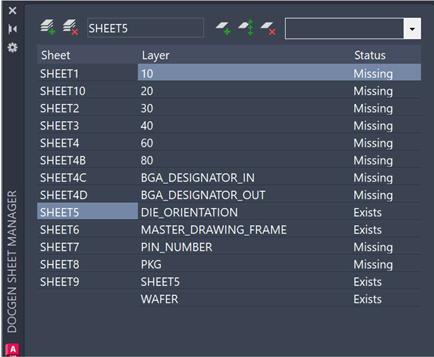
The DocGen Sheet Manager lets the user define named sheets and select existing layers in the template drawing and add layers which will be in the design drawing. When used for completing the documentation of a specific design, the sheets become a critical way to filter, view and edit the document values. All sheet layer set data is stored in the template drawing.
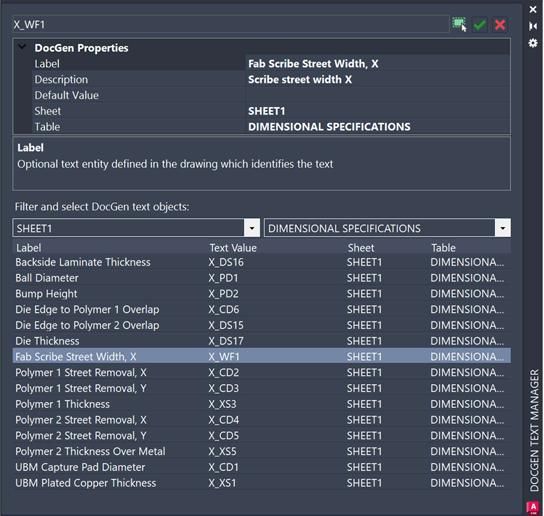
The DocGen Text Manager is key to identifying the text elements in the template which correspond to documentation values. The user simply uses the familiar AutoCAD entity selection on screen to pick any text object. No special formatting or prefix is needed to identify DocGen text variables as all storage and identification is achieved via hidden XData.
The Text Manager will scan to the left of the selected text to fill in values for the text label and description. If no label is present then the description can be filled out manually to provide meaning.
The user can assign a default value for the text, which could represent a measurement, a material, or other standard value used in the technology.
A sheet name, defined in the Sheet Manger can be assigned (or entered) and an optional table, which represents a subset of a sheet, typically within one grouped area. A list of all tagged text variables is listed in the Text Manager, which can be filtered by sheet and/or layer. Double-clicking a row in the grid will zoom and select the text entity for easy verification.
Once all text variables have been identified, saving the drawing completes the creation of the self-contained DocGen template.
The DocGen template drawing only needs to be created and saved one time. Then it can be reused any number of times for the same technology. Because the intelligence defining the technology is self-contained within the drawing file, it is easy to clone and edit DocGen template drawings as processes change, or new technologies need to be supported.
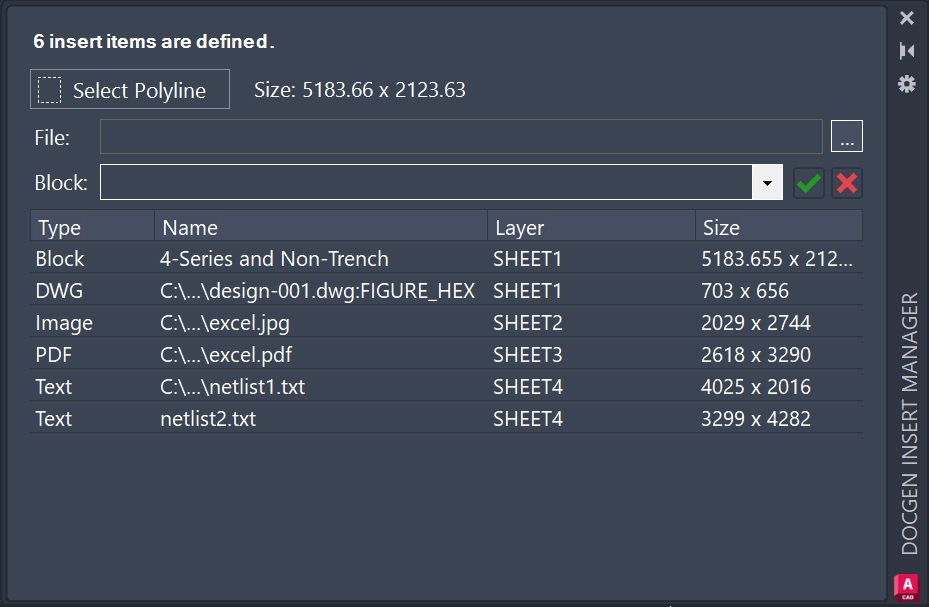
The DocGen Insert Manager supports flexible insertion of items into the documentation to create a more complete looking final documentation package. Several types of objects can be inserted into user-defined polyline boundaries:
The DocGen Insert Manager can also be used after the template and design drawing have been combined. This allows inserting items not associated with the template, or items which are unique to the design being documented.
To maintain maximum resolution of inserted items, and minimize drawing size, PDF and images are inserted as references to the originals. Inserted items need to be available if the documentation drawing is copied, shared, or transmitted. DocGen will warn the user if insert items are missing.
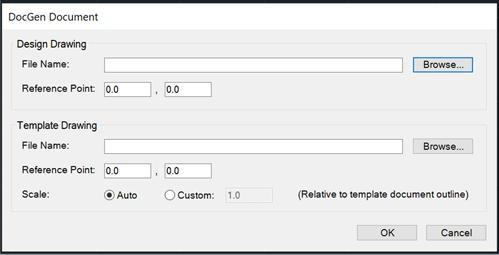
The main DocGen module, selected from the top of the AutoCAD DocGen menu in a new drawing, is how a DocGen document drawing is created. Simply select the template and design files. By default, the template will be scaled around the design drawing. But offset and scaling parameters can be set if the drawings use different reference points.
A Design Parameters File can be used to automatically initialize text variables. This file is read and applied after the default values are read from the template, but before any manual changes by the user. This file can be written by third parties to automate the documentation process. The file is in the JSON format and should use this structure to set text variables:
When OK is clicked, the design drawing is inserted at scale, the template drawing is positioned around the design, and all default parameters for text variables are initialized to those defined in the template. Values from the design parameters file are applied. The DocGen Document module is then displayed to the user, to complete the documentation process.
{
	"docGen": {
		"version": 3,
		"fileType": "documentTemplate",
		"createdBy": "DocGen",
		"createdUtc": "2026-05-01T22:11:13",
		"drawingRole": "Document"
	},
	"documentTemplate": {
		"textVariables": [
		{
			"sheet": "SHEET1",
			"table": "DIMENSIONAL SPECIFICATIONS",
			"description": "Diameter of solder balls",
			"textValue": "0.400"
		},
		{
			"sheet": "SHEET1",
			"table": "DIMENSIONAL SPECIFICATIONS",
			"description": "Plate copper thickness",
			"textValue": "0.2 um"
		},
		}
	]
	}
}
The DocGen Document module is made visible after the main DocGen module is run, and can be opened at any time from the DocGen menu, when editing a document drawing.
The DocGen Document palette displays the predefined sheets and tables and the text variables that belong to them. Each sheet and table can be selected in turn and symbols indicate when a sheet or text has been reviewed or edited, to assist the user in reviewing all required document data.
As each sheet is selected, only the layers belonging to that sheet layer set are made visible, so that the user can view only the parts of the documentation being edited. Double-clicking a row in the text grid zooms to the text entity for verification. The document values can be changed as many times as needed, and it does not matter if any text values have empty values, since they can be identified from their attached XData.
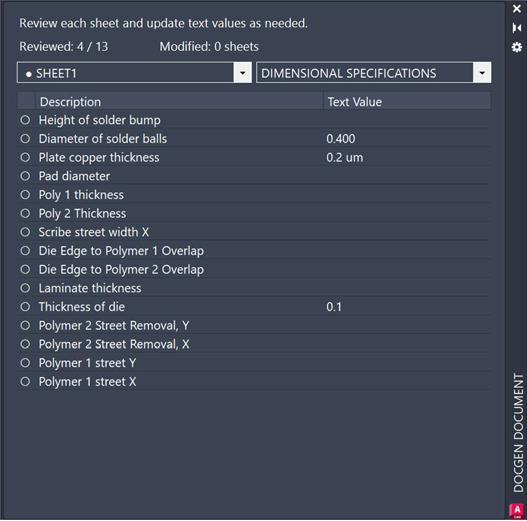
When the user has finished setting all text variables, and inserted any remaining items needed for documentation, the drawing file can be saved.
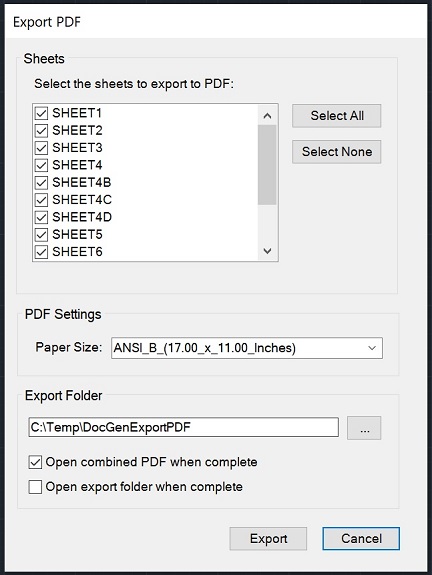
The purpose of DocGen is to help create a complete and dynamic documentation package for a design. The Export PDF module provides an easy way to create PDF files of each sheet for archiving and creating hard copies.
The sheets to be exported to PDF and the PDF target paper size are selected. One PDF file will be exported for each selected sheet. All exported PDF files are then automatically merged into a single PDF file in the export folder.
The video tutorial shows how to get started using DocGen from Artwork Conversion Software. The tutorial demonstrates how to create and use a document template in AutoCAD 2025. The DocGen plugin is designed to automate creation of documentation for EDA designs.